Potato Chips (Avatar Edition) v1.0 Instructions
Installation Instructions
Dependencies
This gimmick depends on the following packages. Make sure you have installed them before you install this gimmick.
- Modular Avatar (1.11.0 or higher): https://modular-avatar.nadena.dev/
- lilToon (1.8.3 or higher): https://lilxyzw.github.io/lilToon/#/
Importing Unity Package
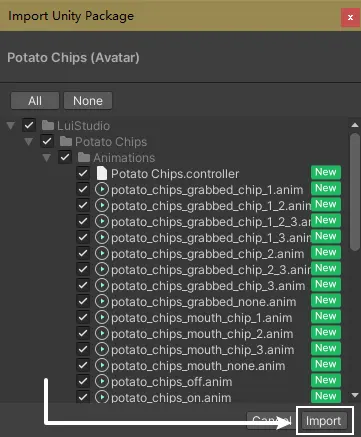
Drag Potato Chips (Avatar).unitypackage into Project window, click the Import button on the dialog to import the package to your avatar project:
Adding Potato Chips to Your Avatar
1. Add the Prefab to Scene
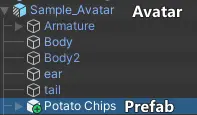
Find and drag Assets/LuiStudio/Potato Chips/Potato Chips.prefab from product window into your avatar inside hierarchy:
2. Setup the Potato Chips
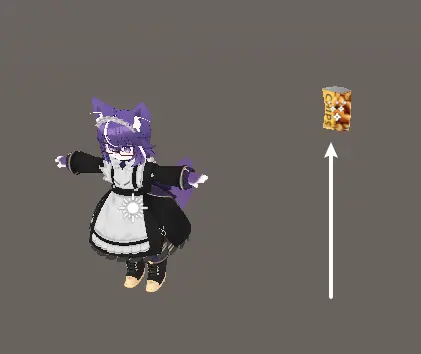
After the dragging, the chips will show up on the right side of your avatar, 1m from the ground:
1. Adjust the Position of the Chips Bag
Select Potato Chips/Potato Chips[1] in hierarchy and use Move Tool, Rotate Tool and Scale Tool[2] to adjust it's position, rotation and size:
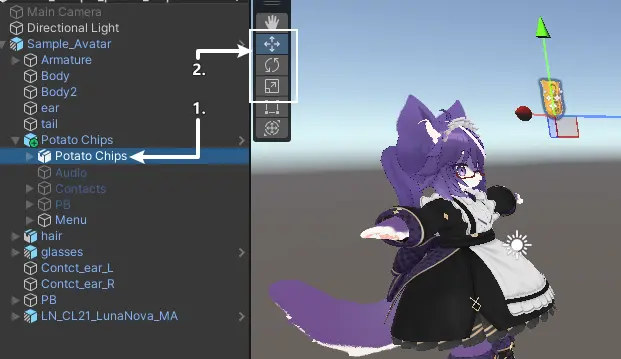
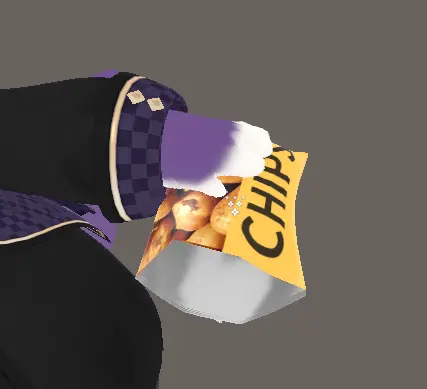
Place the chips bag to your left hand:
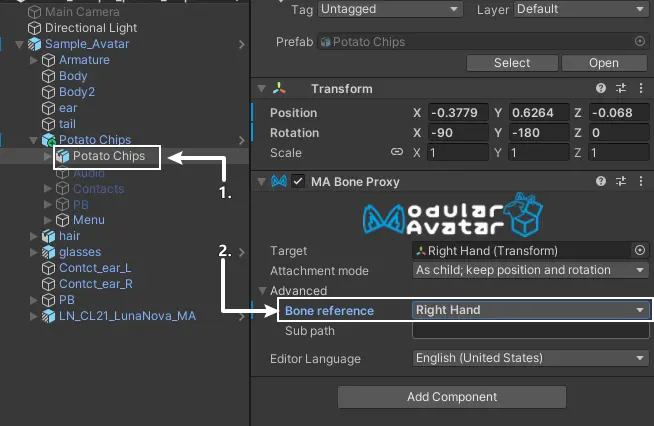
If you want to place it to your right hand, move it to your right hand, make sure Potato Chips/Potato Chips[1] is still being selected, and switch the Bone Reference in MA Bone Proxy Component -> Advance Collapse to Right Hand[2]:
2. Extra Setup
1. Change the Submenu Location in Action Menu (Optional)
By default, the submenu for potato chips is at the root of Action Menu, which is not friendly to avatars having lots of gimmicks. We can change the location by setting up MA Menu Installer component:
- Select the
Potato Chipsin Hierarchy window - Go to Inspector, click on the
Select Menubutton inMA Menu Installercomponent - Select the menu where you want to place the submenu into
2. Hide the Potato Chips in VRChat Avatar Preview (Optional)
The avatar preview in VRChat shows the final state of the avatar in Unity. Which means, if the potato chips has not been disabled in Unity, it would also be shown in VRChat avatar preview. We can hide the chips bag in Unity and VRChat avatar preview by doing these:
- Select
Potato Chips/Potato Chips - Uncheck the checkbox at the top of Inspector (Disable the chips bag)
How to Use
You've done the installation, it's time to try it out in VRChat.
Show/Hide the Rocket Puncher
Open the Action Menu, find and enter the Potato Chips submenu, the Potato Chips toggle shows/hides the chips bag.
Acquire and Consume Chips
Grab a chip inside the chips bag, release the chip or place it into your/others mouth (Head) to consume the chip, a chewing sound would be played after consuming.
Pour Out Chips
There's a Pouring toggle inside the Potato Chips submenu. When it's on, you can infinitely pour out chips by putting the chips bag upside down.