Feather Duster v1.0 Instructions
Installation Instructions
Dependencies
This gimmick depends on the following packages. Make sure you have installed them before you install this gimmick.
- Modular Avatar (1.9.13 or above): https://modular-avatar.nadena.dev/
- lilToon (1.7.3 or above): https://lilxyzw.github.io/lilToon/#/
Importing Unity Package
Drag Duster.unitypackage into Project window, click the Import button on the dialog to import the package to your avatar project:
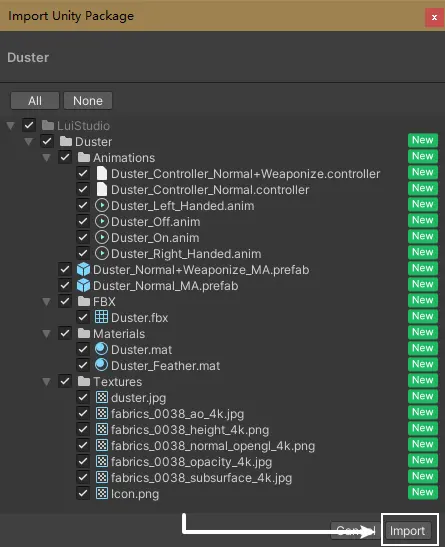
Installing the Normal Edition
1. Add Prefab to Scene
Drag Assets/LuiStudio/Duster/Duster_Normal_MA.prefab into your avatar locates in hierarchy, it should looks like this after the drag:
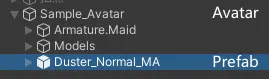
2. Reposition the Feather Duster
1. Reveal the Feather Duster Model
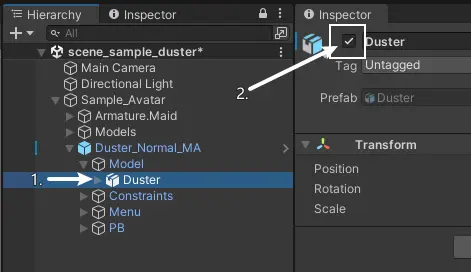
Select Model/Duster[1] under the added prefab. Check the tick box[2](Activate the object) in the inspector as the image below to reveal the model:
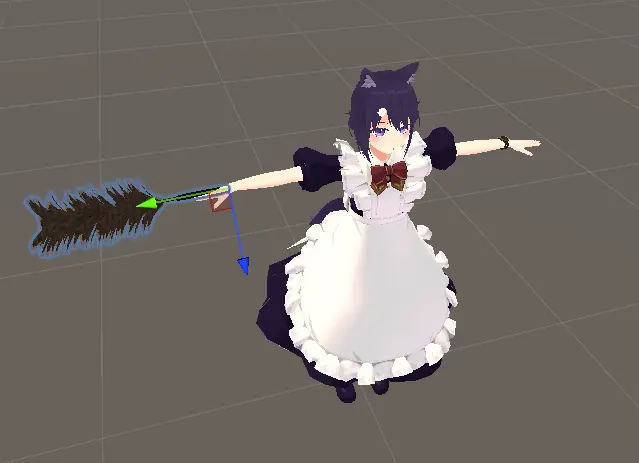
You should now see feather duster on the right hand of your avatar:
2. Reposition
Select Constraints/Right_Hand/Right_Hand_Relative[1] under the added prefab. Use Move Tool and Rotate Tool[2] to reposition the duster on avatar's right hand:
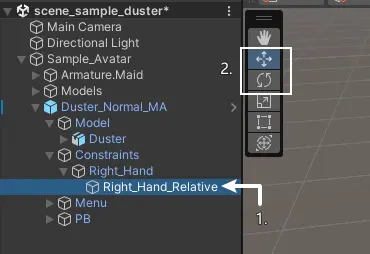
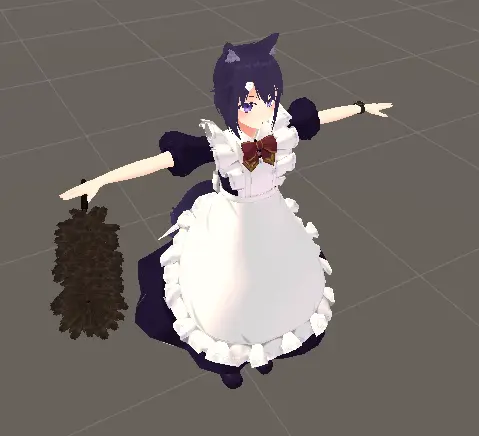
Position the feather duster until you're happy. For example, like image below:
3. Hide the Feather Duster Model
To avoid showing the duster when you preview your avatar in VRChat, we need to hide(Deactivate) the model. (You could skip this if you don't mind at all)
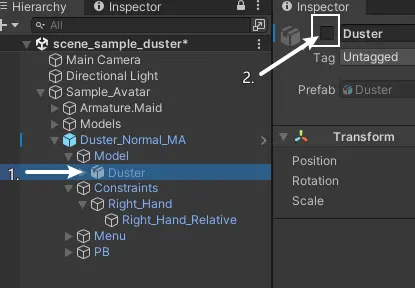
Select Model/Duster[1] under the added prefab. Uncheck the tick box[2](Deactivate the object) in the inspector as he image below to hide the model:
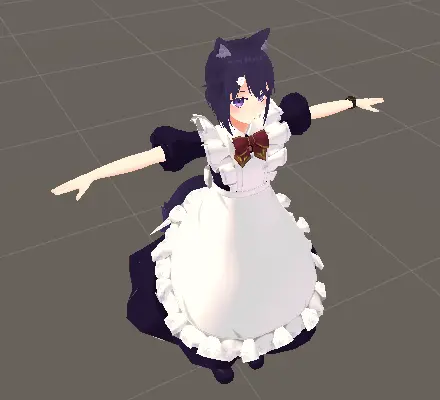
You should now see the duster disapear:
Well Done
You have done the installation of the normal edition, head to How to Use and try it in VRChat.
If you are here by following the instruction of Weaponizable(Can be held in reverse) Edition, please follow the next step to continue the installation.
Installing the Weaponizable (Can be held in reverse) Edition
1. Add Prefab to Scene
Drag the Assets/LuiStudio/Duster/Duster_Normal+Weaponize_MA.prefab into your avatar locates in hierarchy, it should looks like this after the drag:
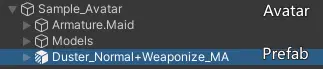
2. Reposition the Duster on Right Hand (Normal State)
Please follow the Reposition the Feather Duster in the installation instructions of the normal edition.
3. Reposition the Duster on Left Hand (Weaponize State / Hold in Reverse State)
1. Reveal the Feather Duster Model
Please follow the Reveal the Feather Duster Model in the installation instructions of the normal edition.
2. Deactivate the Animator on Your Avatar
This step is for avoiding your avatar being changed with unexpected situation due to a Unity bug. It's necessary to save / backup the scene before the next step.
Select your avatar[1] in the hierarchy, Uncheck the Animator component[2] to deactivate it:
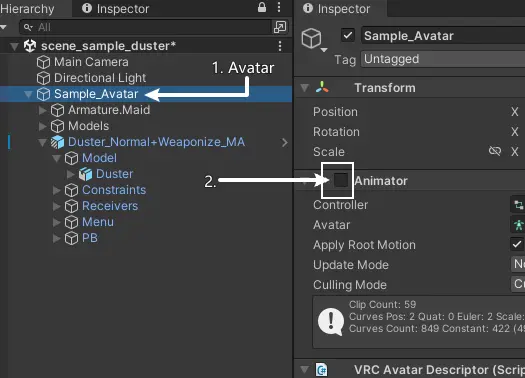
3. Switch the Duster to Left Hand
Make sure you selected any object in the added prefab. Head to the Animation window. Click on the dropdown menu[1], select Duster_Left_Handed[2], then click the Preview button[3] above (Do not click the red button next to the Preview button):
If you don't see the Animation Window, right click on the tab of the Project Window -> Add Tab -> Animation.
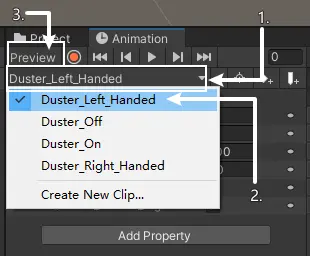
You should now see feather duster on the left hand of your avatar:
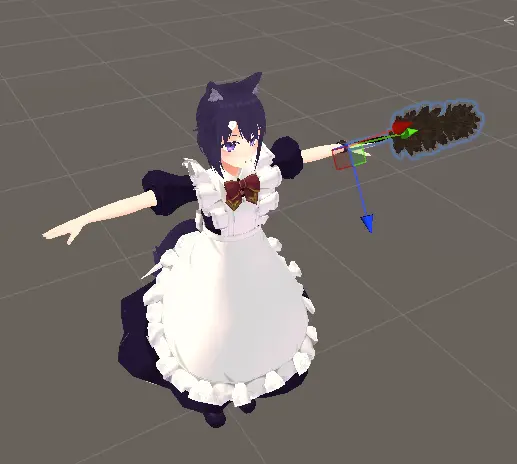
4. Reposition
Select Constraints/Left_Hand/Left_Hand_Relative[1] under the added prefab. Use Move Tool and Rotate Tool[2] to reposition the duster on avatar's left hand:
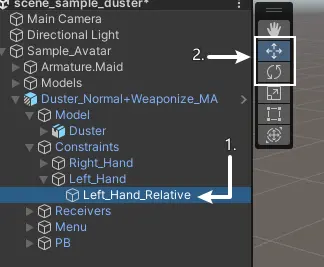
Position the duster until you're happy. Such as the image below:
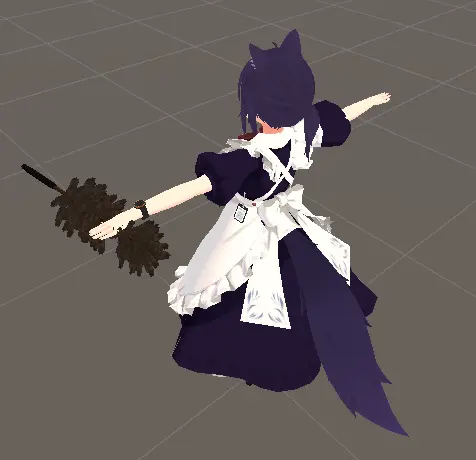
5. Disable the Animation Preview
Click on the Preview button[1] to disable the preview (Do not click on the red button next to it):
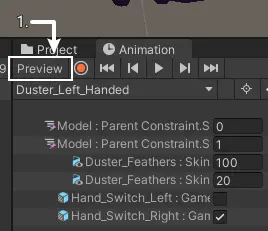
Now the duster should return to right hand:
6. Reactivate the Animator on Your Avatar
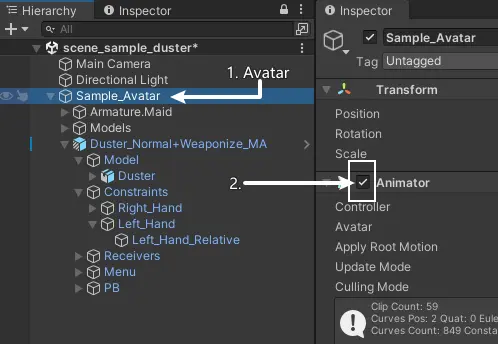
Select your avatar[1] in hierarchy, check the tick box[2] on the Animator component to activate the animator:
7. Hide the Feather Duster Model
Please follow the Hide the Feather Duster Model in the installation instructions of the normal edition.
Well Done!
You have installed the Weaponizable (Can be held in reversed) Edition, head to How to Use and try it in VRChat.
Installing Weaponizable (Can be held in reverse) Edition endHow to Use
You've done the installation, it's time to try it out in VRChat.
Usage of the Normal Edition
Open the Action Menu, find and toggle the Duster Switch to show / hide the feather duster.
Usage of the Weaponizable (Can be held in reverse) Edition
Apart from the usage of the normal edition:
- When holding in normal state, make a fist on your left hand and move it to the part of the duster close to the end, would switch the duster to the left hand and be held in reverse.
- When holding in reverse, make a fist on your right hand and move it to the handle of the duster, would switch the duster back to the normal state.
Miscellaneous
Rescaling the Feather Duster
Every avatar is unique, that's why you need to scale the feather duster to fit with your avatar.
1. Reveal the Feather Duster Model
Please follow the Reveal the Feather Duster Model in the installation instructions of the normal edition.
2. Rescale
Select Model/Duster under the added prefab, use scale tool or set the scale in the inspector to rescale the duster.
3. Hide the Feather Duster Model
Please follow the Hide the Feather Duster Model in the installation instructions of the normal edition.
Change the duster switch position in action menu
The switch is installed to the root menu by default, that's not friendly to avatars having many other gimmicks. You can change the position of the switch using Modular Avatar:
- Select
Menu/Dusterunder the added prefab. - Head to the Inspector, click on the
Select Menuinside theMA Menu Installercomponent. - Select the submenu where you want to put in.