Hypnosis Phone v1.0 Instructions
Installation Instructions
Dependencies
This gimmick depends on the following packages. Make sure you have installed them before you install this gimmick.
- Modular Avatar (1.9.13 or higher): https://modular-avatar.nadena.dev/
- lilToon (1.7.3 or higher): https://lilxyzw.github.io/lilToon/#/
- Gesture Manager (3.9 or higher): https://github.com/BlackStartx/VRC-Gesture-Manager
Importing Unity Package
Drag Hypnosis Phone.unitypackage into Project window, click the Import button on the dialog to import the package to your avatar project:
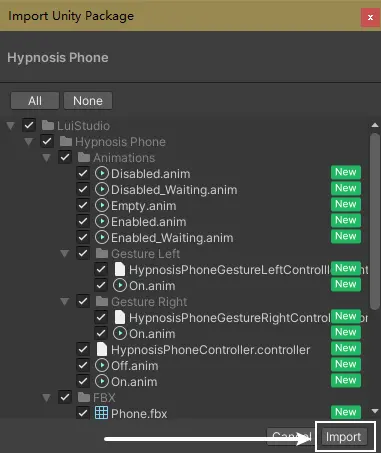
Installing Hypnosis Phone
1. Add Prefab to Scene
Enter the folder Assets/LuiStudio/Hypnosis Phone, choose the prefab determind to the hand that holds the phone:
- Left hand:
Hypnosis Phone (Left Handed).prefab - Right hand:
Hypnosis Phone (Right Handed).prefab
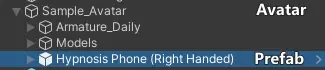
Drag the chosen prefab (right hand for example) into your avatar, the hierarchy should as below:
2. Adjust Position and Holding Gesture
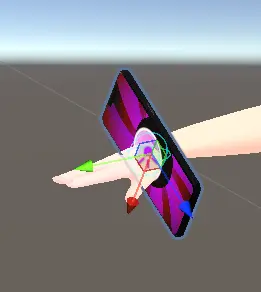
As we can see in the image, the phone in the scene is fixed to the corresponding hand after completing the previous step:
1. (Optional) Duplicate the Gesture Animation and Controller
If you want to apply hypnosis phone on multiple avatars in one project, please duplicate gesture animation and controller for every avatar to prevent conflicts.
Head to Assets/LuiStudio/Hypnosis Phone/Animations, choose the folder depend on the hand that holds the phone:
- Left hand:
Gesture Left - Right hand:
Gesture Right
Duplicate the chosen folder into wherever you want, rename it to whatever name you want.
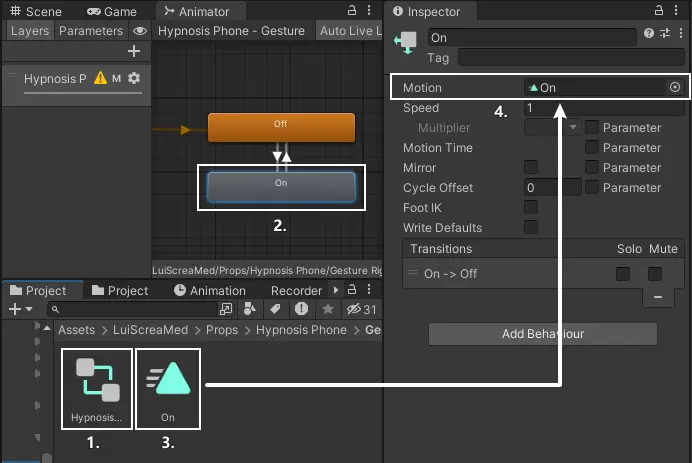
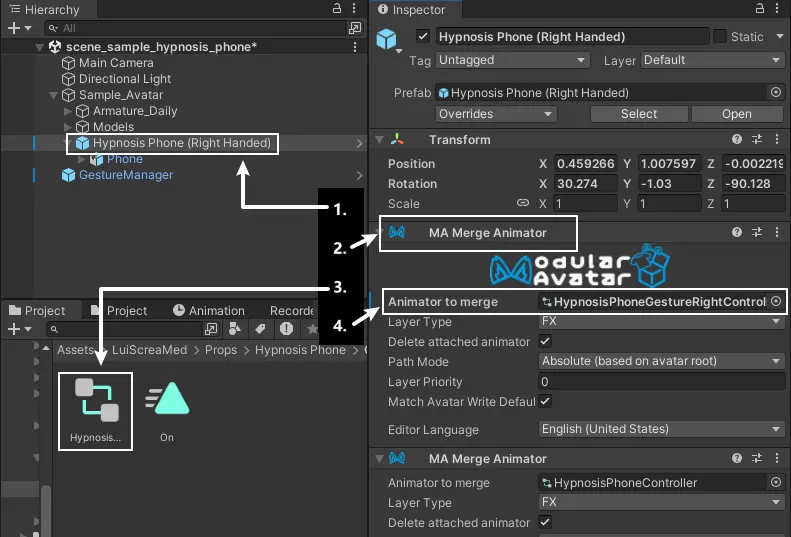
After the duplication, enter the duplicated folder and double click the animator controller(HypnosisPhoneGesture*Controlller)[1]. Click on the On[2] state in the Animator window. Drag the On animation[3] from the Project window into the motion field in Inspector to replace the gesture animation:
If the Inspector window not showing any contents after clicking on the On state, please click on any blank area in the Animator window, and click on On state again.
Select the Hypnosis Phone prefab[1] in Hierarchy window, head to the Inspector window and find the first MA Merge Animator component[2]. Drag the animator controller(HypnosisPhoneGesture*Controlller)[3] from the Project window into the Animator to merge field in the component we found to replace the original gesture animator controller:
2. Asign the Gesture Animator Controller to your Avatar
This step is for adjusting both lemon tea's position and the gesture holding lemon tea, when in animation preview.
This step is temporary. Although VRChat will ignore the controller inside your avatar's animator, please revert the controller after the whole installation if you can.
Select the Hypnosis Phone prefab[1] in Hierarchy window, find the first MA Merge Animator component[2], click on the animator controller[3] in the Animator to merge field to locate the animator controller in Project window:
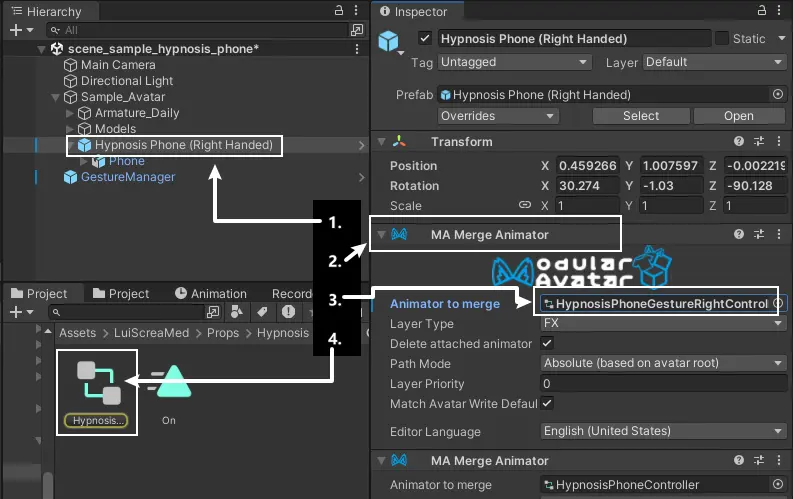
Select your avatar[1] in Hierarchy window, find the Animator component[2] in Inspector window. Drag the animator controller we've located[3] from Project window into the Controller field[4] in the Animator component:

3. Adjust Position of the Phone and Holding Gesture
1. Enable Animation Preview
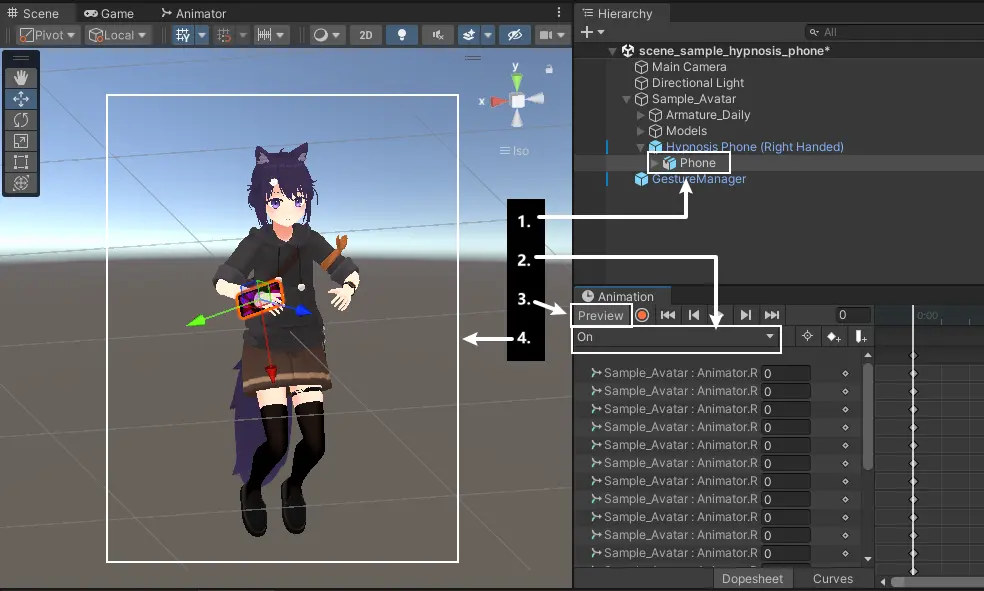
Select Hypnosis Phone prefab/Phone[1] in Hierarchy window, switch the animation to On[2] in Animation window. Click on Preview[3](not the record button) to enter the animation preview, the scene should be like this after clicking on Preview[4]:
If you can't locate the Animation window, please right click on Project window's tab and click Add Tab -> Animation.
2. Adjust Position of the Phone and Holding Gesture
Adjust the position of the phone by using Move Tool, Rotate Tool and Scale Tool[1] in the scene;
To change the holding gesture, head to the Animation window, make sure the timeline cursor aiming at the first frame[2], and adjust every finger in the left panel[3]:
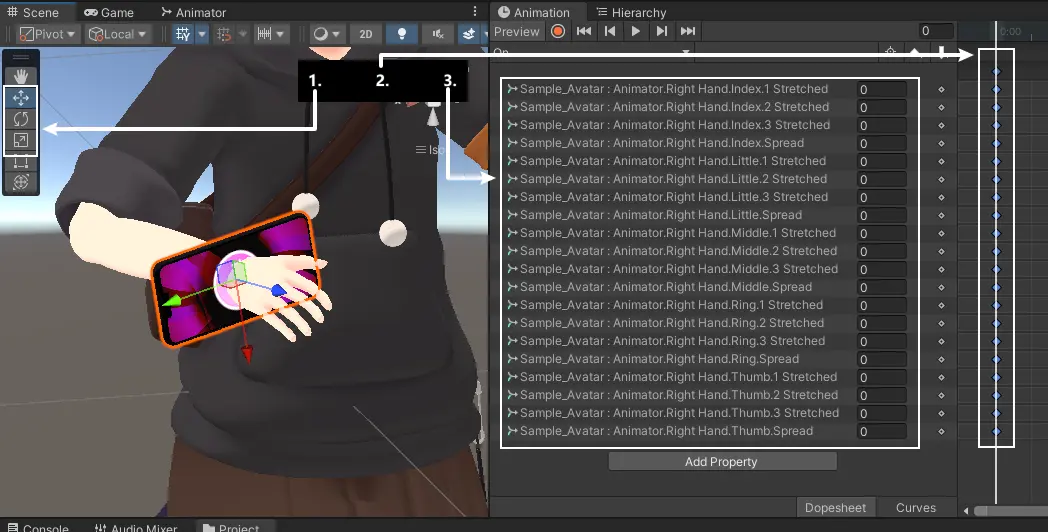
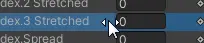
In Animation window, move the cursor to the left side of a value, the cursor would turn into as the image below, at this moment we can adjust fingers easier by dragging vertically or horizontally:
The reference for the position and the gesture:
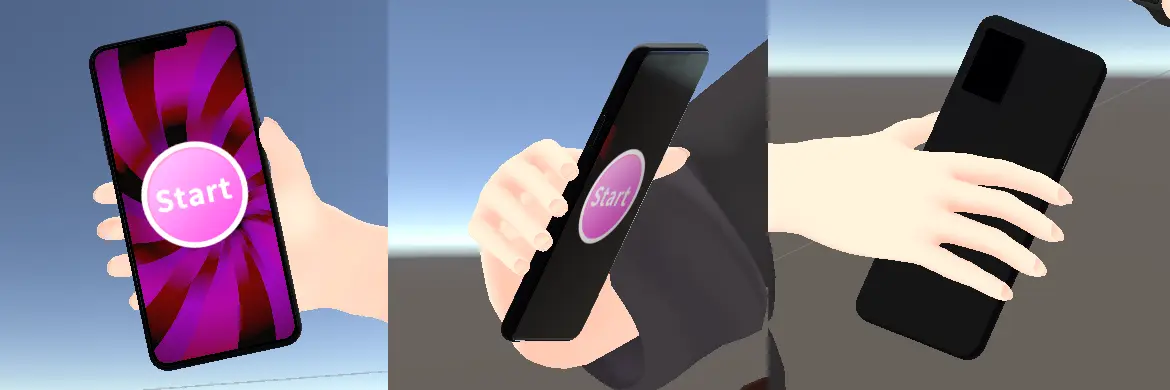
3. Disable Animation Preview
Click on Preview in Animation window to exit the animation preview.
4. (Optional) Recover the Animator Controller for your Avatar
Select your avatar in Hierarchy window, drag the original animator controller in to the Controller field in Animator component.
Well Done
You have done the installation. Head to How to Use and try it in VRChat.
Installation Instructions endHow to Use
You've done the installation, it's time to try it out in VRChat.
- Turn on the action menu, locate the toggle called
Hypnosis Phone, when toggles on, the phone will appear. - Use the hand other than the holding hand and tap on the
Startbutton on the screen to start the hipnosis animation. - Use the hand other than the holding hand again and tap on the middle of the screen to stop the hipnosis animation.
Miscellaneous
Change the Toggle Position in Action Menu
The toggle is installed to the root menu by default, that's not friendly to avatars having many other gimmicks. You can change the position of it by using Modular Avatar:
- Select
Hypnosis Phone Prefab/Menu/Hypnosis Phonein Hierarchy; - Head to Inspector, click on the
Select Menuinside theMA Menu Installercomponent; - Select the menu where you want to install the toggle into.
Only Allow Yourself to Interact with the Phone
Select Hypnosis Phone Prefab/Phone/Button Contacts in Hierarchy windodw, find two VRC Contact Receiver components in Inspector window, uncheck Filtering -> Allow Others in both components.
Hide the Phone in VRChat Avatar Preview
Select Hypnosis Phone Prefab/Phone in Hierarchy window, uncheck the checkbox at the top of the Inspector window.