Lemon Tea v1.0 Instructions
Installation Instructions
Dependencies
This gimmick depends on the following packages. Make sure you have installed them before you install this gimmick.
- Modular Avatar (1.9.13 or above): https://modular-avatar.nadena.dev/
- lilToon (1.7.3 or above): https://lilxyzw.github.io/lilToon/#/
Importing Unity Package
Drag Lemon Tea.unitypackage into Project window, click the Import button on the dialog to import the package to your avatar project:
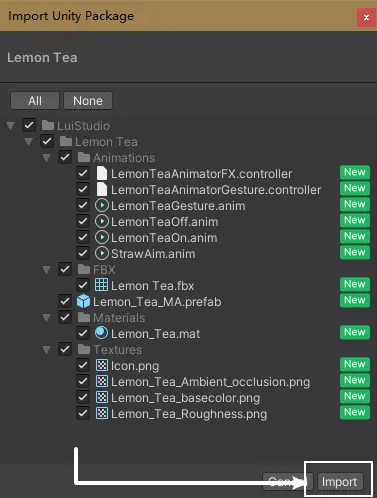
Installing Lemon Tea
1. Add Prefab to Scene
This gimmick contains:
- Normal Edition Which can show/hide with action menu toggle.
- Squeezable While Holding Fist Edition Which... is squeezable while holding fist...
And left-handed editions, 4 editions in total.
The prefab names for each editions:
- Normal Edition:
Lemon_Tea_MA.prefab - Squeezable Edition:
Lemon_Tea_Squeeze_MA.prefab - Normal Edition (Left-handed):
Lemon_Tea_Left_Handed_MA.prefab - Squeezable Edition (Left-handed):
Lemon_Tea_Left_Handed_Squeeze_MA.prefab
This instruction will use the squeezable edition as an example.
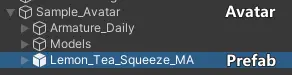
Drag Assets/LuiStudio/Lemon Tea/Lemon_Tea_Squeeze_MA.prefab (Or prefab of other editions) from project window into your avatar locates in hierarchy, it should looks like this after the drag:
2. Reposition
1. Asign the Animator Controller for your Avatar
This step is for adjusting both lemon tea's position and the gesture holding lemon tea, when in animation preview.
This step is temporary. Although VRChat will ignore the controller inside your avatar's animator, please revert the controller after the whole installation if you can.
The Animator Controller names for each edition:
- Normal Edition:
LemonTeaAnimatorGesture - Squeezable Edition:
LemonTeaSqueezeAnimatorGesture - Normal Edition (Left-handed):
LemonTeaLeftHandedAnimatorGesture - Squeezable Edition (Left-handed):
LemonTeaLeftHandedSqueezeAnimatorGesture
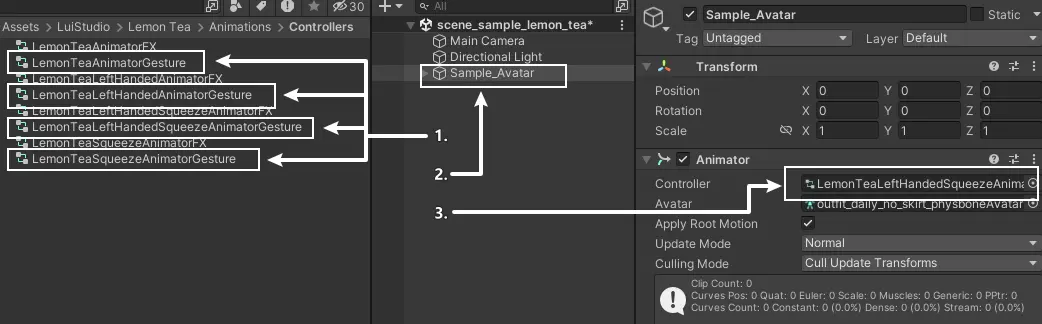
Head to Assets/LuiStudio/Lemon Tea/Animations/Controllers in project window, drag LemonTeaSqueezeAnimatorGesture[1] (Or animator controller of other editions) into your avatar's[2] (Sample_Avatar for example) Animator's Controller[3], you should see the result below after you've done it:
2. Enable Animation Preview
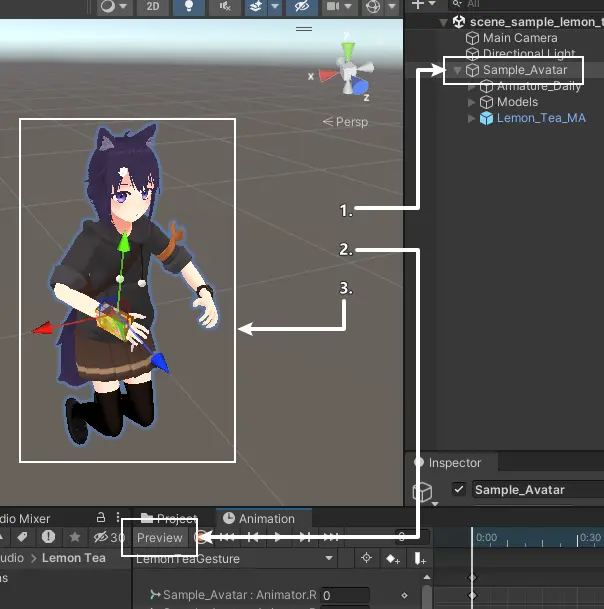
Select your avatar[1] (Sample_Avatar for example) in Hierarchy, and click "Preview" in the animation window[2]. The scene[3] should looks like this after the step:
If you don't see the Animation Window, right click on the tab of the Project Window -> Add Tab -> Animation.
3. Reposition the Lemon Tea
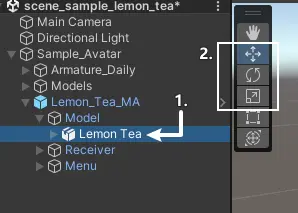
Select Model/Lemon_Tea[1] in prefab located in Hierarchy, use the Move Tool, Rotate Tool and Scale Tool[2] to reposition the lemon tea:
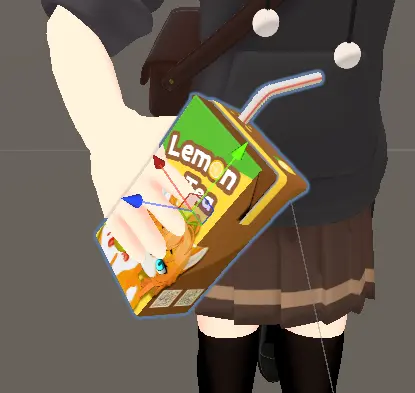
Position the lemon tea until you're happy. Such as the image below:
4. Adjust the Gesture Holding Lemon Tea
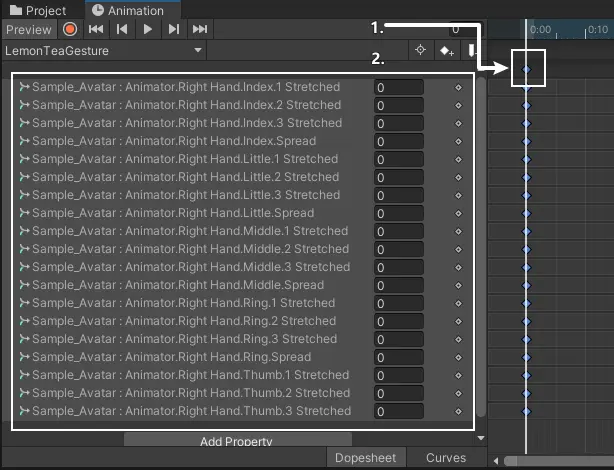
After following the steps above, we might see fingers clipping into lemon tea carton, that looks cheap. We need to adjust the gesture to make our avatar "holding" the carton. Click on the first keyframe[1] in animation window, set the fingers' angles to make the hand visibly holding the carton:
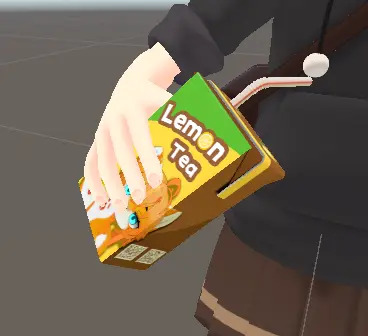
Adjust the gesture until you're happy. Such as image below:
5. Adjust the Gesture Squeezing Lemon Tea
If you choose to install normal editions, please skip and follow Disable Preview and Revert Animator Controller.
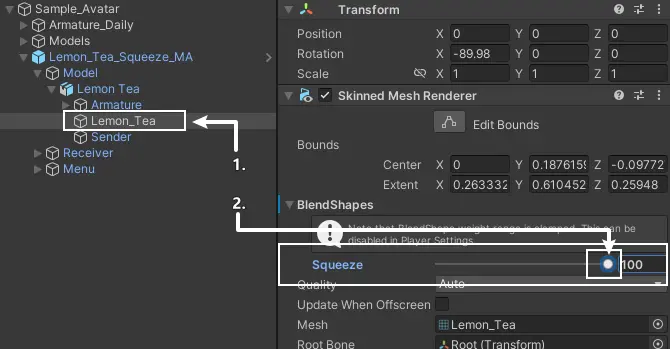
Select Model/Lemon Tea/Lemon_Tea[1] in prefab located in Hierarchy, set Skinned Mesh Renderer -> BlendShapes -> Squeeze to 100[2]:
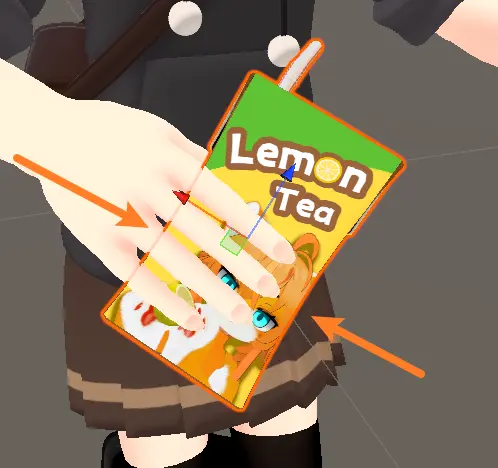
After that, the carton in the scene will be slightly squeezed:
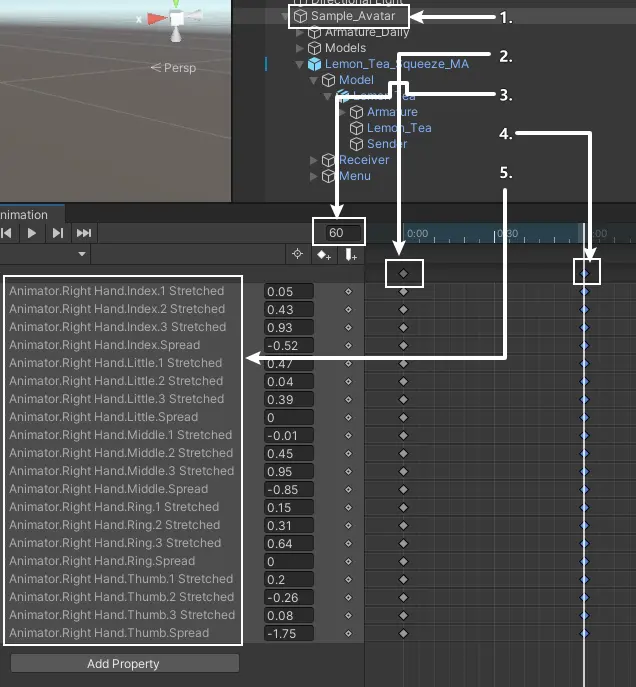
Copy and paste the first keyframe's data to the last keyframe:
Select your avatar[1] in Hierarchy, click on the first keyframe[2] in animation window. Press Ctrl + C to copy the keyframe, set the timeline to 60[3] and hit Enter, then click on the last keyframe[4] of the animation and press Ctrl + V to paste the frame data.
Adjust fingers' angles to make the hand visibly squeezing the carton:
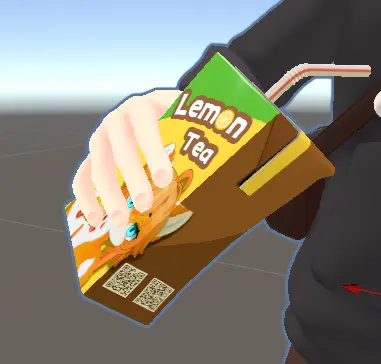
Adjust the gesture until you're happy. Such as image below:
Select Model/Lemon Tea/Lemon_Tea[1] in prefab located in Hierarchy, and set Skinned Mesh Renderer -> BlendShapes -> Squeeze back to 0[2]:
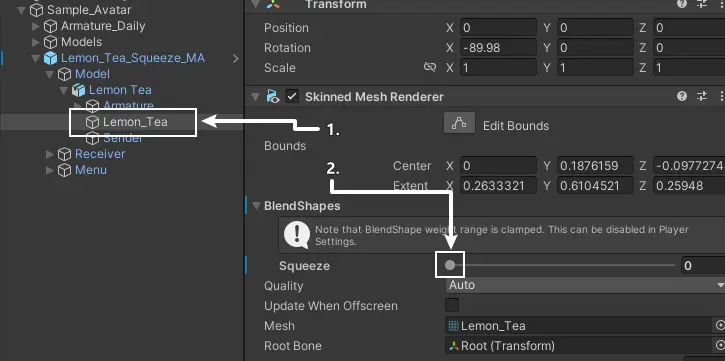
6. Disable Preview and Revert Animator Controller
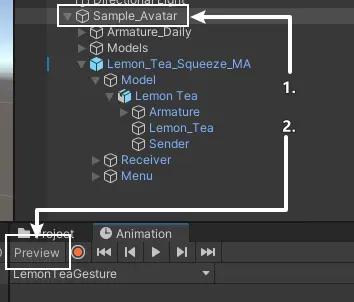
Select your avatar[1] and disable preview[2] in animation window:
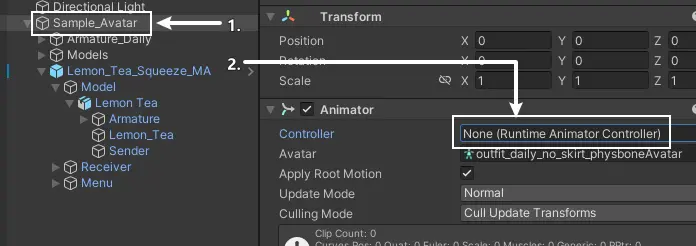
(Optional) Select your avatar[1], revert the animator controller to previous[2] (None for example):
7. (Optional) Hide the Lemon Tea
If you don't want the lemon tea to be visible in avatar preview in VRChat, please follow steps below:
Select Model/Lemon Tea[1] in prefab located in Hierarchy, and deactivate it[2] in Inspector:
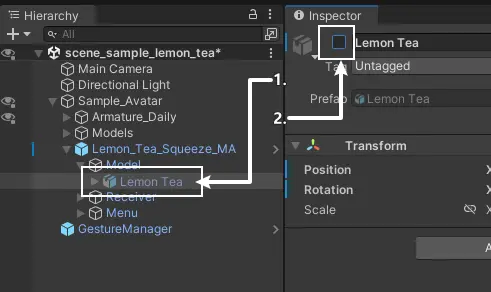
8. Reposition the Mouth Contact Receiver
This gimmick use Contact Sender and Contact Receiver to simulate the straw tracking the mouth (Without occupying DPS, SPS etc.). This step is for moving Contact Receiver to your avatar's mouth.
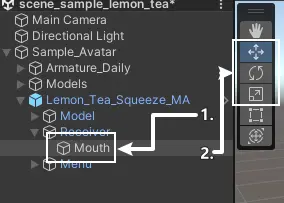
Select Receiver/Mouth[1] in prefab located in Hierarchy, use the Move Tool and Rotate Tool[2] to reposition the receiver:
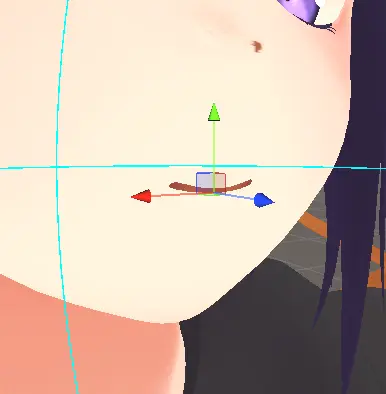
Move the receiver to avatar's mouth, as image below:
Well Done
You have done the installation, head to How to Use and try it in VRChat.
Installing endHow to Use
You've done the installation, it's time to try it out in VRChat.
Basic Usage
- Open the Action Menu, find and toggle the Lemon Tea Switch to show / hide the lemon tea.
- Move the carton toward your avatar's face, the straw will automatically aim to your mouth.
Squeezable Edition Usage
- Make your hand fist to squeeze the carton.
Miscellaneous
Change the Switch Position in Action Menu
The switch is installed to the root menu by default, that's not friendly to avatars having many other gimmicks. You can change the position of the switch using Modular Avatar:
- Select
Menu/Lemon Teaunder the added prefab. - Head to the Inspector, click on the
Select Menuinside theMA Menu Installercomponent. - Select the submenu where you want to put in.