Don't Touch Me v1.2.0 Instructions
Gimmick Overview
This gimmick uses the Non-Destructive Modular Framework and Modular Avatar to non-destructively enable the Avatar's head to dodge when other players' hands come close, and to play emote defined by the tool during the dodge.
This gimmick works by inserting a head proxy with a PhysBone into the Avatar’s head bone, allowing it to dodge when other players' hands approach.
Notes
- This gimmick has only been tested with VRCSDK3 and Unity 2022.3.22f1.
- This gimmick only supports humanoid Avatars that include head bone.
- Since this gimmick modifies the Avatar’s bone hierarchy, it may conflict with other gimmicks (such as detachable head gimmicks, etc.).
Installation
Dependencies
This gimmick depends on the following package. Make sure you have installed it before installing this gimmick.
- Modular Avatar (1.13.0 or higher): https://modular-avatar.nadena.dev/
Importing Unity Package
Drag Don't Touch Me.unitypackage into Project window, click the Import button on the dialog to import the package to your avatar project:
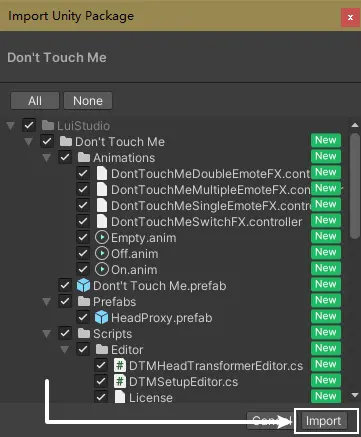
Installing Don't Touch Me
1. Adding the Prefab to Scene
Find and drag Assets/LuiStudio/Don't Touch Me/Dont't Touch Me.prefab from product window into your avatar inside hierarchy:
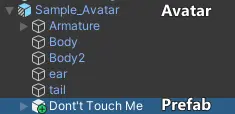
2. Setting up the Gimmick
1. Adjust the Position and Size of the Head Collider
After adding and selecting the Prefab, a white spherical wireframe will appear at the scene coordinates (0, 1.5, 0):
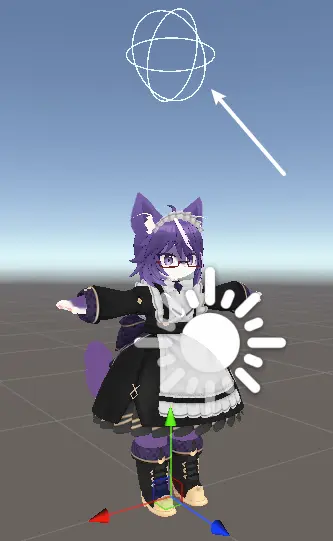
If the white spherical wireframe does not appear, make sure the current window is the Scene window and that Gizmos are enabled in the top-right corner of the Scene window.
If your Avatar does not have a VRC Avatar Descriptor component, does not have an Animator component, or if the Animator component does not contain a humanoid Avatar, the head collider will appear at (0, 1.5, 0). However, since the Avatar does not meet the requirements, the head collider cannot be edited.
In the Hierarchy, select Don't Touch Me[1], then in the Inspector locate the Don't Touch Me Setup Tool component[2]. Click the Reset button[3] under Head Collider to quickly align the head collider with the Avatar’s head[4]:
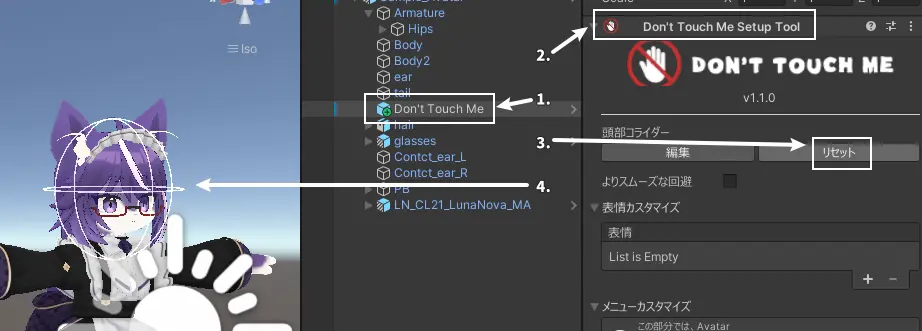
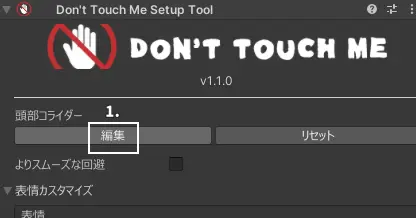
Click the Edit button[1] under Head Collider to edit the head collider:
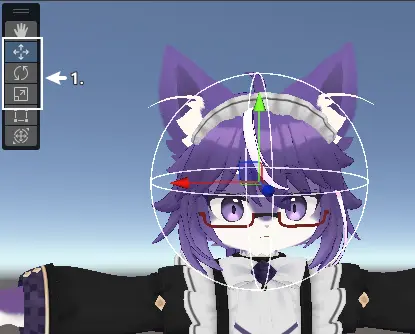
After clicking Edit, a transform tool will appear at the center of the white spherical wireframe. Use the Move and Scale tools[1] to adjust its position and size:
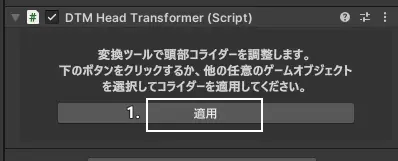
Once finished, select any other GameObject or click Apply[1] in the DTM Head Transformer component in the Inspector to finalize the adjustments:
2. Enable Smoother Dodging (Optional)
Smoother dodging refers to whether the generated PhysBone component uses Stiffness to achieve smoother head movement.
In the Don't Touch Me Setup Tool component, check Smoother Dodging[1] to enable this feature:
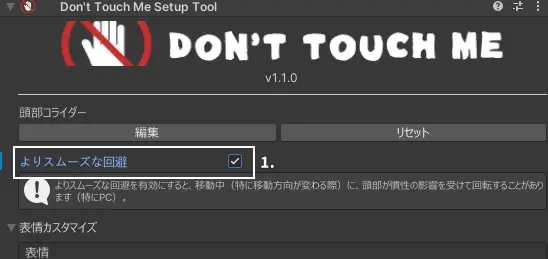
Enabling smoother dodging may cause the head to occasionally rotate due to inertia during movement, especially when changing direction (especially on PC).
3. Add Dodging Emotes (Optional)
Dodging emotes refer to the emotes played during a dodge, implemented via blendshape animations.
You can add multiple emotes and choose to have them play in order, play randomly, or lock one to play during each dodge.
1. Emote Notes
Depending on the number of emotes and the custom menu item mode,
the menu and sync parameter usage will vary between 1 bit and 19 bits.
For detailed sync parameter usage, see here.
Any emotes in the list that are missing their corresponding blendshapes will be removed.
2. Add Emotes
In the Don't Touch Me Setup Tool component, click the + button[1] at the bottom right of the emote list to add a new emote:
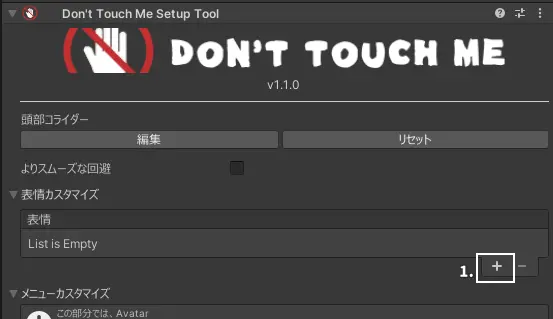
3. Add Emote BlendShapes
Click the + button[1] at the bottom right of the BlendShape list for the added emote to add a new emote BlendShape:
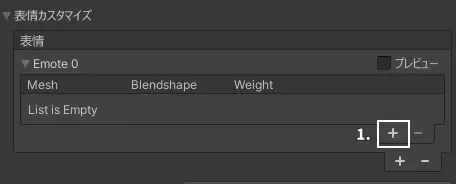
After adding a new emote BlendShape, the list will look like this (the labels in the image are explained below):
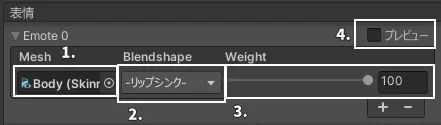
In the newly added entry:
Mesh[1] refers to the Skinned Mesh Renderer that contains the BlendShape to be played;BlendShape[2] is the name of the BlendShape to be played;Weight[3] is the weight of the BlendShape when played.
Drag the GameObject that has the Skinned Mesh Renderer with BlendShapes into the Mesh[1] field, select the desired BlendShape in the BlendShape[2] field, and adjust the Weight[3].
When Preview[4] is checked or the weight is adjusted, Unity will enter animation mode, allowing you to see the effect of the current emote in real time:
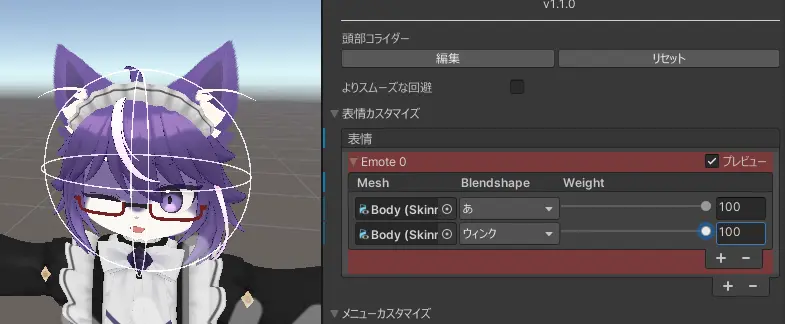
Unchecking Preview[4] or selecting another GameObject will cancel the emote preview state.
4. Customize Menu Item (Optional)
The menu item's name and mode can be configured under Customize Menu Item below emote list. The number of configurable items depends on the number of emotes and the menu item mode. You can view the sync parameter usage in real time under Custom Menu Items[1]:
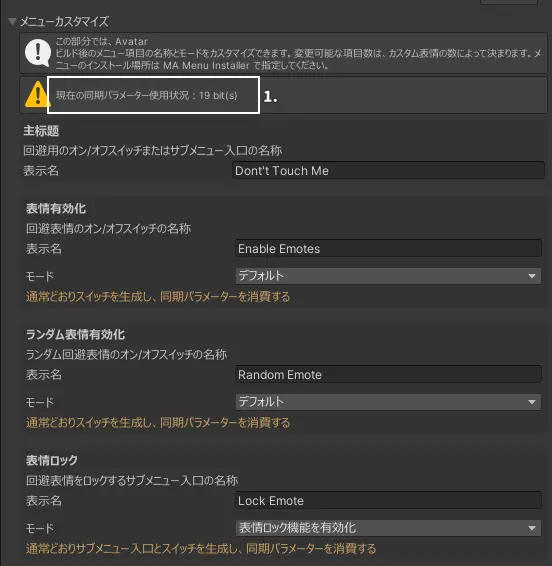
The following explains the configuration for each menu item:
If you cannot find the corresponding custom menu item in the component, it means that your number of emotes is below the required threshold or Enable Emotes Mode is set to Always Off. Menu items that are not displayed will not be included in the Avatar build.
Main Title
Display Name- The name of the main toggle or submenu entry displayed in the Action Menu.
Enable Emotes
-
Display Name- The name of the toggle displayed in the Action Menu used to enable or disable dodging emotes. -
Mode- The mode of this menu item. Details of each mode are as follows:Mode Description Default Adds this toggle during the build and occupies 1 bit of sync parameter;
When there are 2 custom emotes, an additional 1 bit of emote parameter is used (total 2 bits);
When there are more than 2 custom emotes, an additional 8 bits of emote parameter is used (total 9 bits).Always On Ignores this toggle during the build, the feature is always enabledand does not occupy sync parameters;
When there are 2 custom emotes, 1 bit of emote parameter is used;
When there are more than 2 custom emotes, 8 bits of emote parameter are used.Always Off Ignores this toggle during the build, the feature is always disabledand does not occupy sync parameters;
Random Emote and Lock Emote functionalities will also be disabled.
Random Emote
-
Display Name- The name of the toggle displayed in the Action Menu used to enable or disable random emote. -
Mode- The mode of this menu item. Details of each mode are as follows:Mode Description Default Adds this toggle during the build and occupies 1 bit of sync parameter. Always On Ignores this toggle during the build, the feature is always enabledand does not occupy sync parameters.Always Off Ignores this toggle during the build, the feature is always disabledand does not occupy sync parameters.
Lock Emote
-
Display Name- The name shown in the Action Menu for the submenu used to select emotes to lock. -
Mode- The mode of this menu item. Details of each mode are as follows:Mode Description Enable Lock Emote Feature Adds a submenu entry for selecting locked emotes during the build, occupying 8 bits of parameters. Disable Lock Emote Feature Ignores this feature during the build and does not occupy sync parameters.
5. Configure Exclusions (Optional)
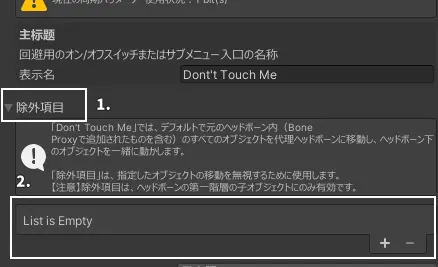
By default, Don't Touch Me moves all objects originally under the head bone (including those added via Bone Proxy) into the proxy head bone, so that everything under the head moves together.
Exclusions are used to ignore the movement of specified objects.
Exclusions only apply to the first-level child objects of the head bone.
Goto Exclusions[1] under Don't Touch Me Setup Tool component, and add the objects you want to exclude to the array[2]:
6. Other Setup
1. Change the Position of the Submenu or Toggle in the Action Menu (Optional)
By default, the submenu entry / toggle for this gimmick is placed under the root menu, which may not be ideal for Avatars with many features.
You can change the position of the submenu using the MA Menu Installer component:
- In the Hierarchy, select
Don't Touch Me - In the Inspector, find the
MA Menu Installercomponent and click theSelect Menubutton - Choose the menu where you want to place the submenu or toggle
When no emotes are added, the gimmick replaces the original submenu with a single toggle. For details, see Emote Notes.
Testing
After installing “Don't Touch Me,” you can test its functionality by entering Play Mode.
First, you’ll need the Gesture Manager, which can be installed via the VRChat Creator Companion.
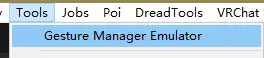
Once Gesture Manager is installed, click Tools/Gesture Manager Emulator in the Unity menu:
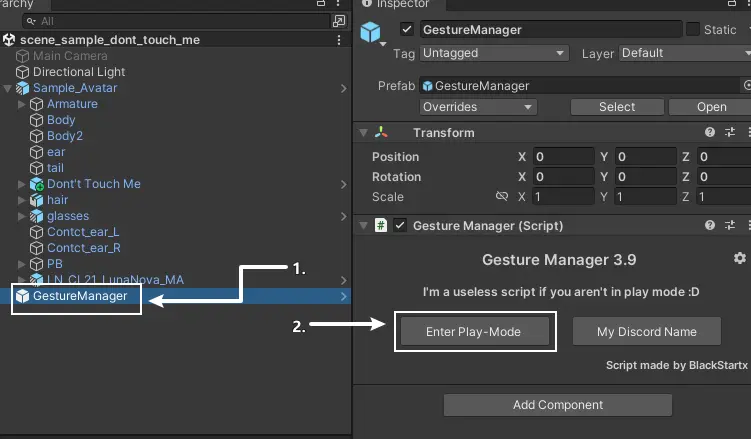
Clicking this will add a GameObject named GestureManager[1] to the scene.
Select it, go to the Inspector, and click Enter Play-Mode[2] on the Gesture Manager component to enter Play Mode:
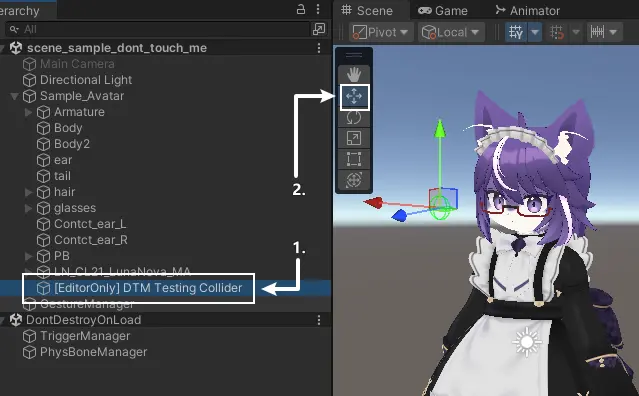
After entering Play Mode, you will see a GameObject named [EditorOnly] DTM Testing Collider in the Avatar’s hierarchy.
This object is used to test whether the gimmick is functioning correctly.
Switch to the Scene view, select [EditorOnly] DTM Testing Collider[1], and use the Move Tool[2] to bring it closer to or farther from the Avatar.
Use it along with the Gesture Manager’s Action Menu to test the dodging and emote functionality of the gimmick:
If the Avatar's head dodges when the Dodging Toggle is enabled and stays still when it's disabled,
and if emotes play or don't play according to the Emote Toggle, then the gimmick is working correctly.
The [EditorOnly] DTM Testing Collider GameObject is only added during Play Mode and will not be included when uploading the Avatar.
How to Use
Enable and Disable Dodging
| Number of Emotes | Method |
|---|---|
| 0 | Open the Action Menu and find the Don't Touch Me toggle to enable/disable the dodging feature |
| >0 | Open the Action Menu, navigate to the Don't Touch Me submenu, and use the Don't Touch Me toggle inside to enable/disable the dodging feature |
Enable and Disable Dodging Emotes (Only When Emotes Are Present)
Open the Action Menu, navigate to the Don't Touch Me submenu, and use the Enable Emotes toggle to enable or disable the playback of dodging emotes.
Enable and Disable Random Dodging Emotes (Only When Number of Emotes > 2)
By default, dodging emotes play in the order they appear in the list. If random emote is enabled, a random emote from the list will be played during each dodge.
Open the Action Menu, navigate to the Don't Touch Me submenu, and use the Random Emote toggle to enable or disable random dodging emotes.
Lock Dodging Emote (Only When Number of Emotes ≥ 2)
When a dodging emote is locked, the specified emote will be played for every dodge.
Open the Action Menu, navigate to the Don't Touch Me/Lock Emote submenu, and use the Emote toggle inside to select the emote you want to lock.