RIP AFK v1.1.* Instructions
Gimmick Overview
This gimmick uses the Non-Destructive Modular Framework and Modular Avatar to non-destructively enable an avatar to turn into a stone monument when entering AFK state.
During the avatar build process, this gimmick performs the following operations:
- Disables any animation transitions in the Action and FX layers that include a condition where AFK is set to
true. - Searches the avatar for all objects that contain PhysBones, Contact Receivers, Renderers, Particle Systems, or Lights.
- Generates an AFK animation that disables all of the above objects except those explicitly excluded by the user.
Notes
- This gimmick has only been tested with VRCSDK3 and Unity 2022.3.22f1.
Known Issues
- When entering AFK state while in the air, if the stone monument lands before the avatar, the avatar’s viewpoint will slowly descend and rotate until reaching the ground.
- In instances with a large number of players, the local player’s AFK animation may not play when switching AFK states, though it will still appear correctly to other players.
Installation
Dependencies
This gimmick depends on the following packages. Make sure you have installed it before installing this gimmick.
- Modular Avatar (1.13.0 or higher): https://modular-avatar.nadena.dev/
- lilToon (1.8.3 or higher): https://lilxyzw.github.io/lilToon/#/
Importing Unity Package
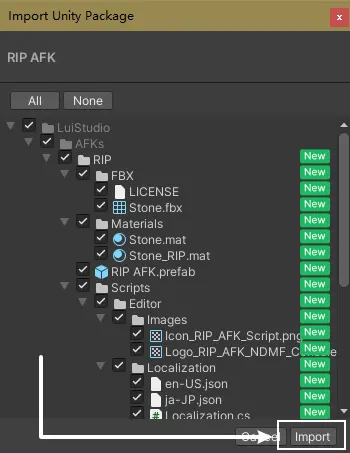
Drag RIP AFK.unitypackage into Project window, click the Import button on the dialog to import the package to your avatar project:
Installing Gimmick
1. Adding the Prefab to Scene
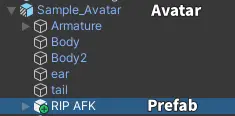
Find and drag Assets/LuiStudio/AFKs/RIP/RIP AFK.prefab from product window into your avatar inside hierarchy:
2. Setting up the Gimmick
1. Using Custom Parameter (Optional)
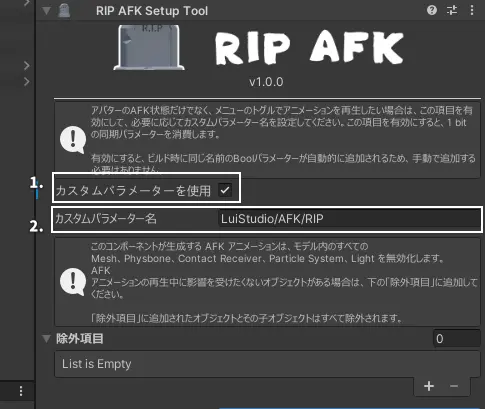
If you want the animation to play not only based on the Avatar’s AFK state but also through other methods (such as a menu toggle), you can enable the Custom Parameter feature.
When enabled, a synchronized bool parameter using 1 bit will be automatically added during the build, named according to your custom parameter. You do not need to add it manually.
Check Use Custom Parameter[1] to enable this feature. The Custom Parameter Name field[2] allows you to set the name of the parameter you wish to use:
2. Add Exclusions (Optional)
The AFK animation generated by this gimmick will disable all Meshes, PhysBones, Contact Receivers, Particle Systems, and Lights in the model.
If you need certain objects to remain unaffected while the AFK animation is playing, you can add them to the Exclusions array[1]:
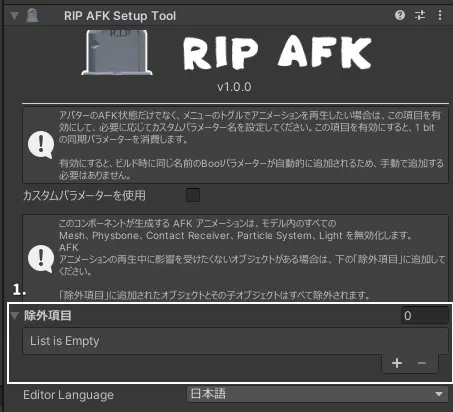
Objects added to the 'Exclusions' list, along with all of their child objects, will be excluded.
3. Modify the Stone (Optional)
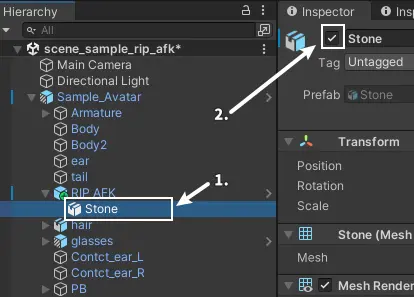
The stone is hidden by default.
If you need to modify it, select RIP AFK/Stone[1] in the Hierarchy and check the box in the upper-left corner of the Inspector[2]:
Adjust Position and Scale (Optional)
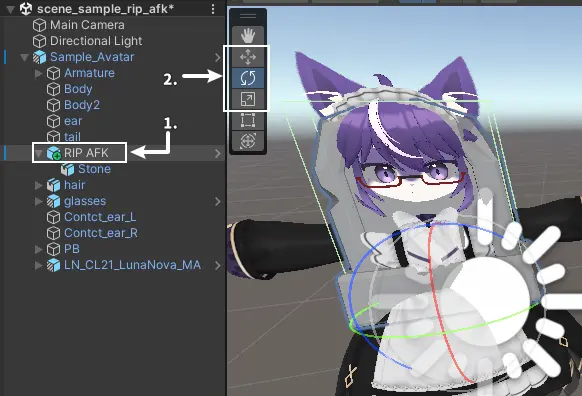
Select RIP AFK[1] and use the Move, Rotate, and Scale tools[2] to adjust the position and size of the stone:
Add Custom Elements to the Stone (Optional)
If you’d like to add custom elements such as an Audio Source for the AFK state or display your own ID on the stone,
simply place your desired objects inside the Stone object and keep them enabled.
I’ve tried generating text meshes and rendering text textures via Camera during the NDMF build process, but both methods failed. If you have a way to generate custom stone text at build time, please contact us!
Replace the Stone Model (Optional)
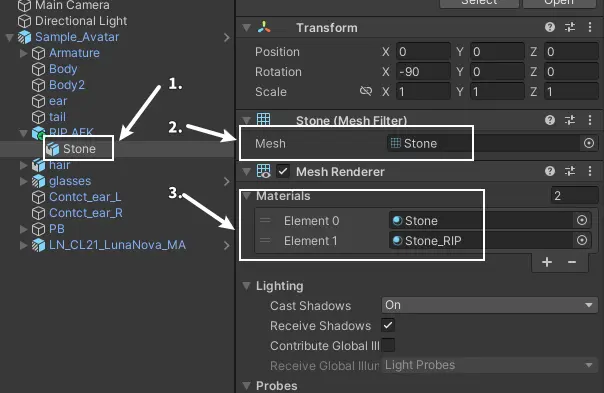
Select the RIP AFK/Stone[1] object and locate the Mesh Filter and Mesh Renderer components in the Inspector.
Replace the mesh in the Mesh Filter component[2] with the mesh of your custom model,
and replace the material in the Mesh Renderer component[3] with your desired material:
Next, find the Box Collider component and adjust its bounds to fit the new model.
Do not directly replace the entire Stone object.
If you must replace it completely:
- Make sure the new object has the same components as the original
Stoneobject. - Switch the Inspector to Debug mode, select
RIP AFK, and drag your new object into theStone Transformfield in theRIP AFK Setup Toolcomponent.
Testing
After installation, you can test it by entering Play Mode.
First, we need the Gesture Manager, which can be installed from the VRChat Creator Companion.
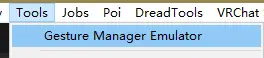
Once Gesture Manager is installed, click Tools → Gesture Manager Emulator in the Unity menu:
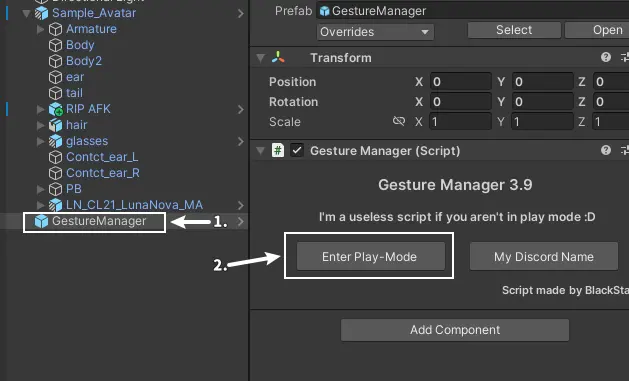
After clicking, a new GameObject named GestureManager[1] will be added to the scene.
Select it, go to the Inspector, and click Enter Play-Mode[2] in the Gesture Manager component to enter Play Mode:
After entering Play Mode, a circular action menu[1] will appear in the Gesture Manager component.
Click Options → States → AFK[2] to toggle the AFK state:
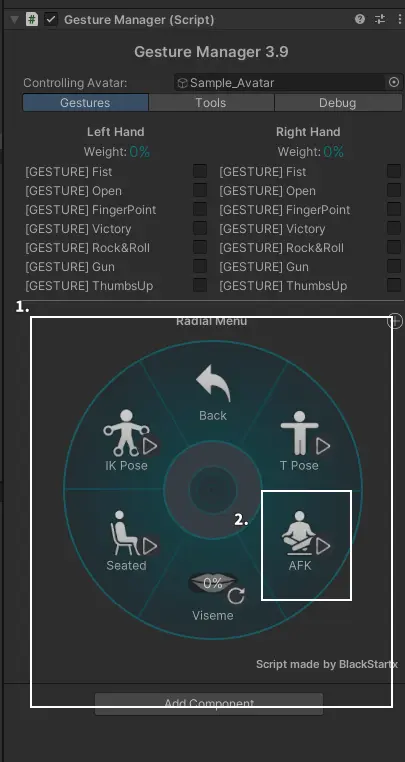
When you switch to the AFK state, if the Avatar disappears and a falling stone appears, it means the gimmick is functioning properly.
Testing endHow to Use
Make sure that the Avatar’s AFK state detection is enabled:
- In PC Mode, press the End key on your keyboard to toggle the AFK state.
- In VR Mode, open the SteamVR menu to enter AFK mode.
When entering the AFK state, the Avatar will turn into a stone.
If you have enabled the Custom Parameter, the Avatar will also turn into a stone when that parameter is set to true.