RIP AFK v2.0.* Instructions
Gimmick Overview
This gimmick uses the Non-Destructive Modular Framework and Modular Avatar to non-destructively enable an avatar to turn into a stone monument when entering AFK state.
During the avatar build process, this gimmick performs the following operations:
- Add parameters or toggles according to
RIP AFK Setup Toolcomponent. - Look for every object contains PhysBones, Contact Receivers, Renderers, Particle Systems, or Lights in the Avatar.
- Generate animation clips according to Exclusions and Force Off Objects.
- Mute or add condition for any animator transitions containing any conditions with AFK
trueaccording toUse Default AFK Togglesetting. - Clear any unused menu items and parameters (e.g. Added use default AFK toggle without enabling
Use Default AFK Toggle).
Notes
- This gimmick will toggle on/off game objects containing components below with animation:
- PhysBone
- Contact Receiver
- Renderer
- Particle System
- Light
- This gimmick has only been tested with VRCSDK3 and Unity 2022.3.22f1.
Known Issues
- Compatibility issue might happen when using Avatar with Write Defaults Off, check About Compatibility Issue with Write Defaults Off Avatars for details.
- When entering AFK state while in the air, if the stone monument lands before the avatar, the avatar’s viewpoint will slowly descend and rotate until reaching the ground.
Installation
Dependencies
This gimmick relies on the following Unity plugin. Make sure you have installed it before installing this gimmick.
- Modular Avatar (1.16.0 or higher): https://modular-avatar.nadena.dev/
- lilToon (2.2.1 or higher): https://lilxyzw.github.io/lilToon/#/
Importing Unity Package
Drag RIP AFK.unitypackage into Project window, click the Import button on the dialog to import the package to your avatar project:
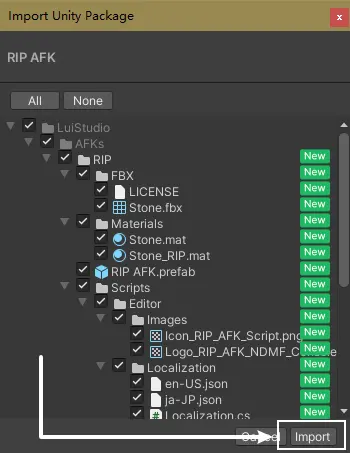
Installing Gimmick
1. Adding the Prefab to Scene
Find and drag Assets/LuiStudio/AFKs/RIP/RIP AFK.prefab from product window into your avatar inside hierarchy:
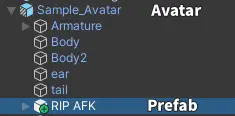
2. Setting up the Gimmick
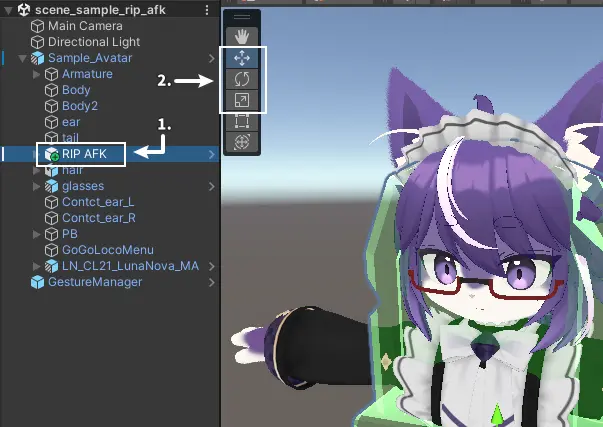
1. Change Position and Scale for the Stone (Optional)
Select RIP AFK[1] and use the Move, Rotate, and Scale tools[2] to adjust the position and size of the stone:
2. Use Custom Parameter (Optional)
If you want the RIP AFK animation to play not only based on the Avatar’s AFK state but also through other methods (such as a menu toggle), you can enable the Custom Parameter feature.
When enabled, a synchronized bool parameter using 1 bit will be automatically added during the build. You do not need to add it manually.
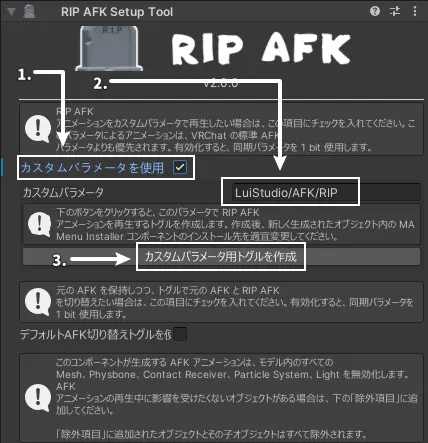
Check Use Custom Parameter[1] to enable this feature.
The Custom Parameter field[2] is for copying the parameter and use it in Animator Controller or somewhere else. If you want a single toggle to play RIP AFK animation, you can easily create a toggle by clicking on Create Custom Parameter Toggle[3]:
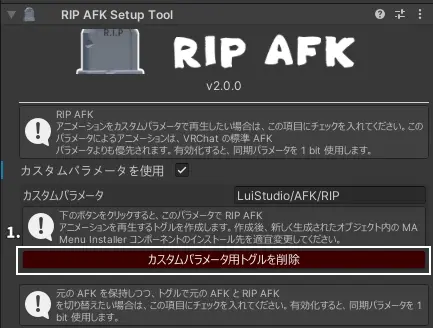
After creating the custom parameter toggle, click on Remove Custom Parameter Toggle[1] to remove the created toggle:
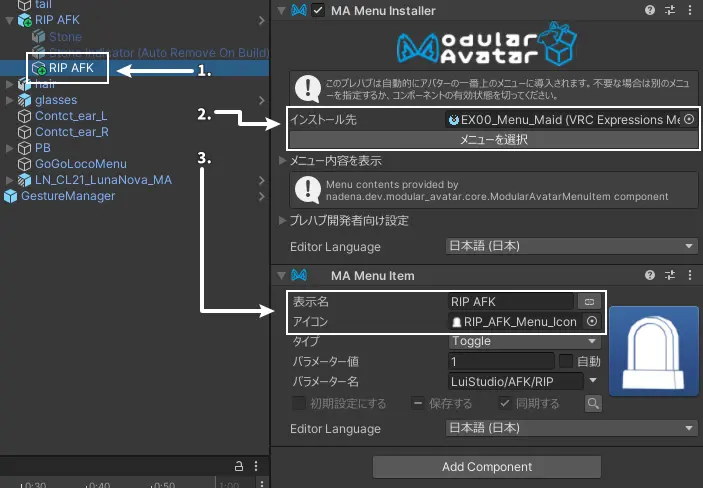
After creating the toggle, select the new game object[1], modify menu install target for MA Menu Installer[2] and menu item name, menu item icon for MA Menu Item[3] as needed:
If you don't check Use Custom Parameter, the redundant LuiStudio/AFK/RIP parameter and all menu items containing this parameter will be removed during the build process.
3. Use Default AFK Toggle (Optional)
If you want to keep the original AFK and toggle between RIP AFK. You can enable Use Default AFK Toggle.
When enabled, a synchronized bool parameter using 1 bit will be automatically added during the build. You do not need to add it manually.
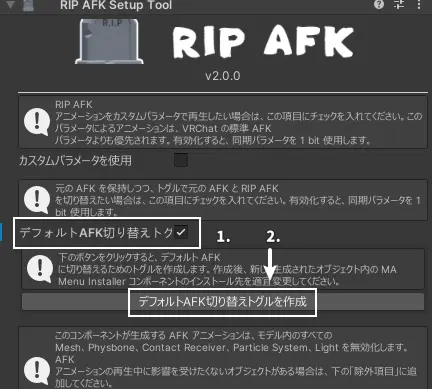
Check Use Default AFK Toggle[1] to enable this feature, and click on Create Default AFK Toggle[2] to create a toggle:
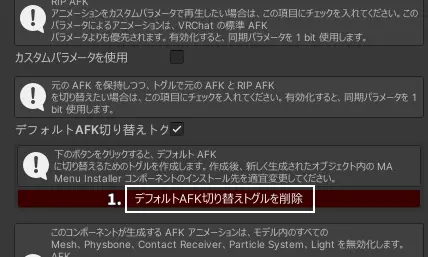
After creating the toggle, click on Remove Default AFK Toggle[1] to remove the created toggle:
After creating the toggle, select the new game object[1], modify menu install target for MA Menu Installer[2] and menu item name, menu item icon for MA Menu Item[3] as needed:
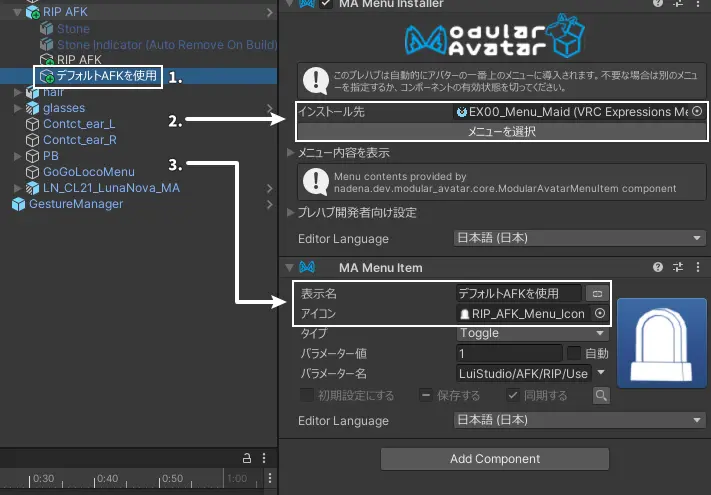
If you leave Use Default AFK Toggle checked without creating the toggle, a default Default AFK Toggle will be added to the root of action menu during the build process.
If you don't check Use Default AFK Toggle, the redundant LuiStudio/AFK/RIP/UseDefaultAFK parameter and all menu items containing this parameter will be removed during the build process.
4. Add Exclusions (Optional)
The AFK animation generated by this gimmick will disable every game objects in avatar mentioned in Notes.
If you need certain objects to remain unaffected while the AFK animation is playing, you can add them to the Exclusions list[1]:
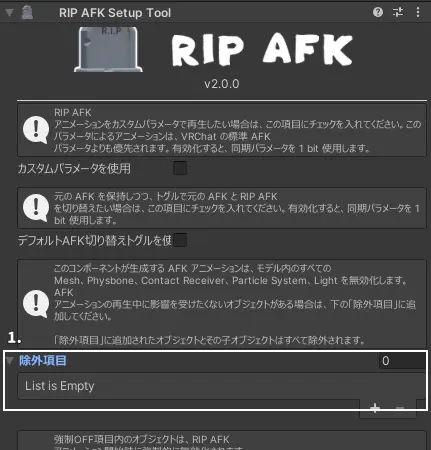
Objects added to the 'Exclusions' list, along with all of their child objects will be excluded.
5. Add Force Off Objects (Optional)
If you need to turn off objects other than objects mentioned in Notes, you can add them to the Force Off Objects[1] list:
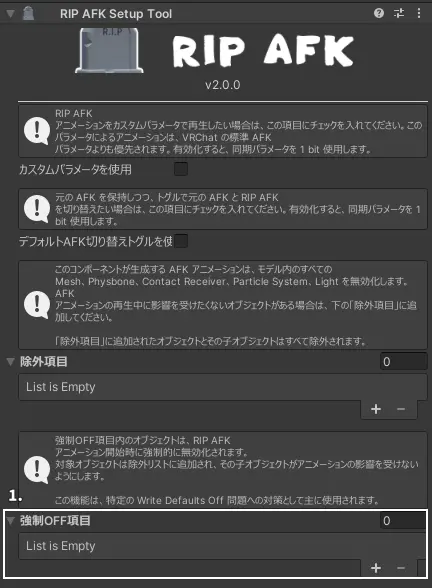
Objects in the Force Off Objects list will be first added into Exclusions list, then added into RIP AFK animations, to make sure of not animating it's child. This feature is mainly for preventing some compatibility issue with Write Defaults Off Avatars.
If there are any MA Bone Proxy components in child objects, which their targets are out of the object, and the child objects are not the kind of objects mentioned in Notes, then this feature will not work on these child objects. If you just happen to get into this situation, please add the child objects into Force Off Objects list as well.
6. Modify the Stone (Optional)
The stone is hidden by default.
If you need to modify it, select RIP AFK/Stone[1] in the Hierarchy and check the box in the upper-left corner of the Inspector[2]:
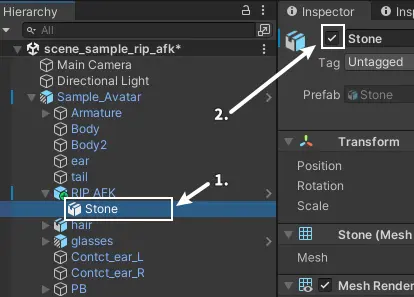
Add Custom Elements to the Stone (Optional)
If you’d like to add custom elements such as an Audio Source for the AFK state or display your own ID on the stone,
simply place your desired objects inside the Stone object and keep them enabled.
Replace the Stone Model (Optional)
Select the RIP AFK/Stone[1] object and locate the Mesh Filter and Mesh Renderer components in the Inspector.
Replace the mesh in the Mesh Filter component[2] with the mesh of your custom model,
and replace the material in the Mesh Renderer component[3] with your desired material:
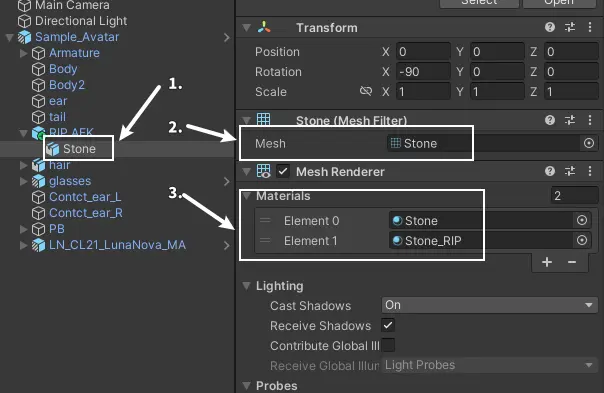
Next, find the Box Collider component and adjust its bounds to fit the new model.
Do not directly replace the entire Stone object.
If you must replace it completely:
- Make sure the new object has the same components as the original
Stoneobject. - Switch the Inspector to Debug mode, select
RIP AFK, and drag your new object into theStone Transformfield in theRIP AFK Setup Toolcomponent.
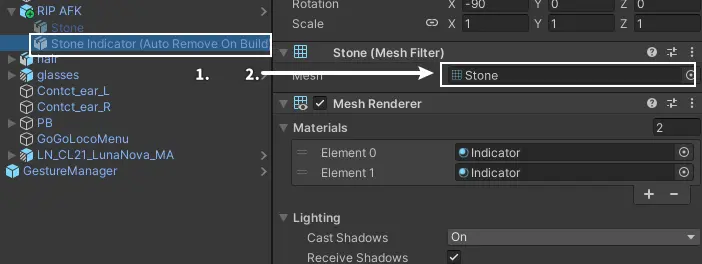
Select RIP AFK/Stone Indicator (Auto Remove On Build)[1], find Mesh Filter component in Inspector.
Replace the Mesh [2] of the Mesh Filter component to your new model:
3. Compatibility Issue with Write Defaults Off Avatars
When you are using an avatar with Write Defaults Off, due to the behavior of Write Defaults Off, in the older version, when exiting RIP AFK animation, if your avatar is out of others view, your avatar might not fully recover (Invisible).
To fix this issue, the newer version added a default animation depends on Exclusions and Force Off Objects to the top of the FX layer, to record the default state of objects those need to be disable/enable with RIP AFK animations.
Details of the Issue
Although the invisible issue was fixed by adding the new default animation, it also brings the new issue. When your avatar meets the following conditions:
- There's a layer in the FX layer animator controller.
- The layer contains multiple states.
- These states have transitions to each other.
- The properties of the animtion clip in one or more of the states don't match those in the other states.
- Missing properties happens to be the ones that need to be disabled by RIP AFK animation.
Or, more simply:
If there's one state in a layer enables/disables game objects, which the next state doesn't.
Then, when entering the next state, because it doesn't control the corresponding game objects, the game objects' active state will be overwritten by the default animation mentioned above.
How to Fix It?
To avoid causing further issues, this extension will not touch any animations other than those in RIP AFK (even if the operations are non-destructive). Users need to fix it by themselves as below.
Force Off Objects is added to RIP AFK Setup Tool in new version. By using it, the objects in the list will be enabled/disabled in the generated animation, leaving all their child untouched.
Please refer to the following cases to troubleshoot compatibility issues.
Case 1
If the affected object is not a direct child of the Avatar, simply add its parent object to the Force Close Items list.
Case 2
If the affected object is a direct child of the Avatar:
- Create a new Game Object.
- Add a
MA Bone Proxycomponent to the affected object. - Asign the new game object as the
MA Bone Proxycomponent's target. - Add the new game object into
Force Off Objectslist.
Other Complex Cases
If the issue is particularly complex, we recommend adding an exclusion directly. Alternatively, feel free to contact us at any time with questions.
Installation endTesting
After installation, you can test it by entering Play Mode.
First, we need the Gesture Manager, which can be installed from the VRChat Creator Companion.
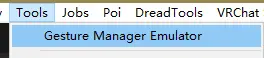
Once Gesture Manager is installed, click Tools → Gesture Manager Emulator in the Unity menu:
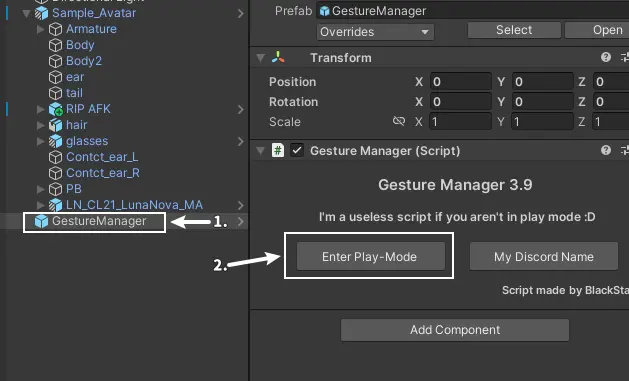
After clicking, a new GameObject named GestureManager[1] will be added to the scene.
Select it, go to the Inspector, and click Enter Play-Mode[2] in the Gesture Manager component to enter Play Mode:
After entering Play Mode, a circular action menu will appear in the Gesture Manager component.
If you encounter issues with certain objects after exiting the RIP AFK animation during any test, please refer to Compatibility Issue with Write Defaults Off Avatars.
General Testing
Click Options → States → AFK to toggle the AFK state:
If you switch to AFK, the avatar turns invisible and a falling stone shows up, and if you switch back to normal state, everything recovers currectly, that means the gimmick is working properly.
Testing with Use Custom Parameter Enabled
In addition to following the steps in General Testing:
- If you created a toggle in the
RIP AFK Setup Tool, locate theRIP AFK (Or your customized name)Toggle in the action menu and toggle it to test. - If you implemented the animation logic yourself, please test according to your own logic.
Testing with Use Default AFK Toggle Enabled
Locate Use Default AFK (Or your customized name) toggle in the action menu, toggle it and follow the steps in General Testing to change the AFK state for testing.
How to Use
General Usage
Make sure that the Avatar’s AFK state detection is enabled:
- In
PC Mode, press theEndkey on your keyboard to toggle the AFK state. - In
VR Mode, open theSteamVRoverlay menu to enter AFK mode.
When entering the AFK state, the Avatar will turn into a stone.
Other Usage
If you have enabled Use Custom Parameter or Use Default AFK Toggle, then follow the corresponding methods in the testing section.